How to Create Stunning 3D Art with Paint 3D: Top 10 Expert Tips
Creating stunning 3D art doesn’t require expensive subscriptions or complex software if you know how to leverage the hidden power of Microsoft’s Paint 3D. Many users open this tool, click a few buttons, and assume it’s just a toy for children. They are wrong.
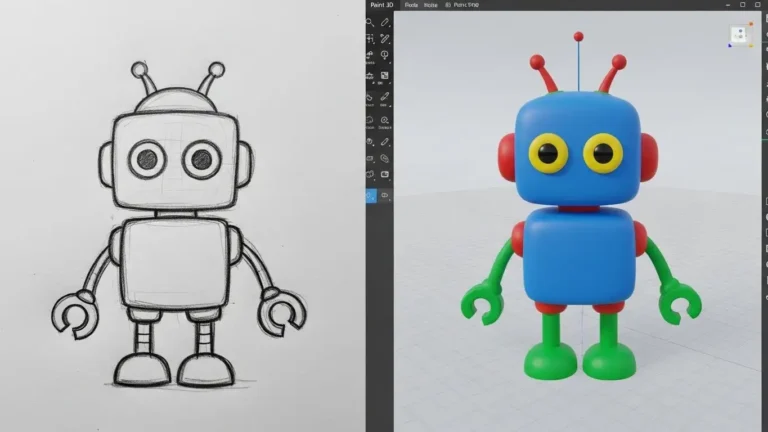
I have spent years experimenting with accessible design tools, and I can tell you that Paint 3D is a surprisingly capable entry point into the world of three-dimensional modeling. It bridges the gap between flat 2D sketching and volumetric design. Whether you are a hobbyist wanting to design a custom character or a professional looking to mock up a quick concept, understanding the nuances of this software is key.
In this guide, I will walk you through ten actionable tips to elevate your work from “basic” to professional. We will cover everything from mastering the Z-axis to advanced lighting techniques that make your models pop.
Why Paint 3D is Still a Powerhouse
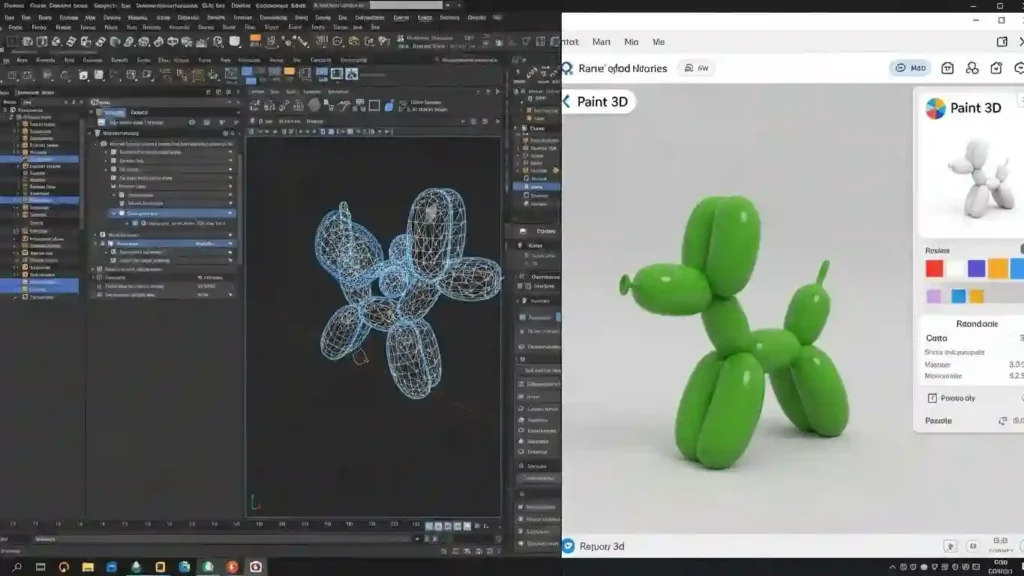
Before we jump into the tips, let’s address the elephant in the room. Why use Paint 3D in 2026?
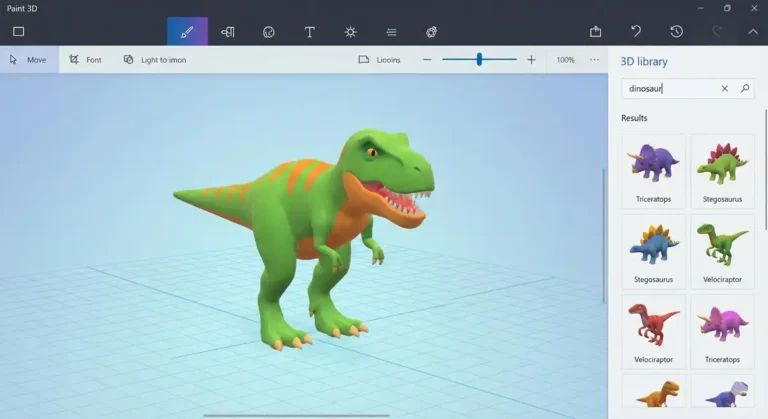
The answer is speed and accessibility. Professional tools like Blender or Maya have steep learning curves that can discourage beginners. Paint 3D removes those barriers. It allows you to visualize concepts instantly. However, the interface can be deceptive. It looks simple, but hiding behind those large icons are robust features for texture mapping and spatial manipulation.
If you are new to the ecosystem, you might want to check our guide on getting started with Microsoft 3d paint to familiarize yourself with the basic interface. Once you have the basics down, the real fun begins.
The Core Guide to Stunning 3D Art Creation
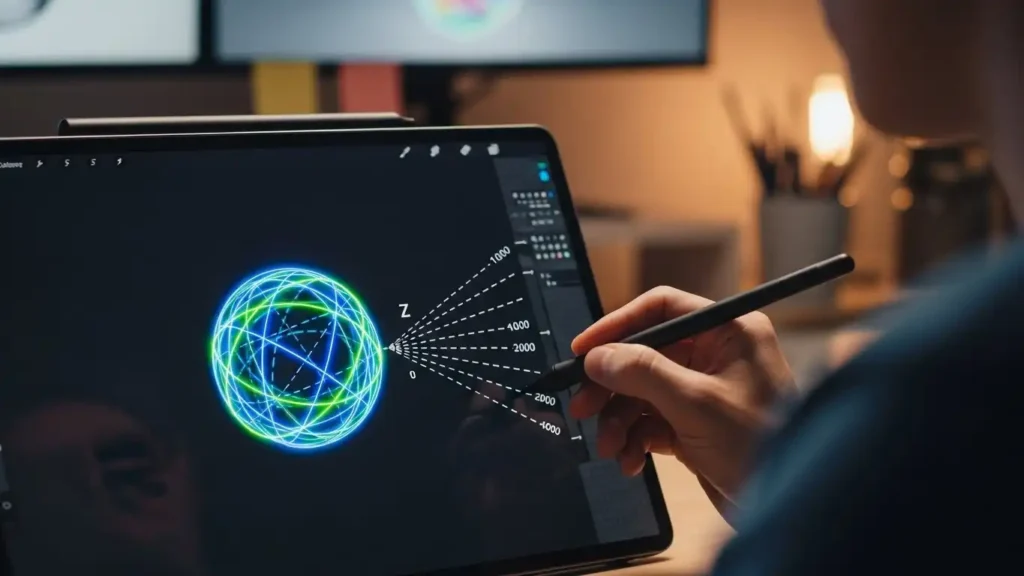
To truly master this tool, you need to think like a sculptor, not a painter. The canvas is no longer a flat surface; it is a window into a workspace with depth. Here are the first five essential tips to shift your mindset.
1. Master the Z-Axis (Depth Perception)
The biggest mistake beginners make is treating 3D objects like 2D stickers. They move them left and right but forget they can move back and forth.
In Paint 3D, selecting an object reveals four handles. The handle on the left side of the selection box (the one that looks like an arrow pointing into a wall) controls the Z-axis. By holding this and sliding your mouse up or down, you push the object deeper into the canvas or pull it closer to the “camera.”
Pro Tip: Frequently toggle the “3D View” mode. This rotates your entire canvas, showing you exactly where your objects are floating in space. Stunning 3D art relies on accurate spatial relationships, so don’t leave your objects floating in the void.
2. The Power of the “Soft Edge” 3D Doodle
Most people use the basic shapes—spheres, cubes, and cones. While useful, they look generic. The “3D Doodle” tool is your ticket to custom organic shapes.
Specifically, the Soft Edge doodle tool works like inflating a balloon. You draw a closed loop, and the software instantly puffs it up into a pillow-like 3D object. This is perfect for creating clouds, character bodies, or organic vegetation.
- Draw your outline smoothly.
- Connect the end point to the start point.
- Use the manipulation handles to squash or stretch the resulting blob.
3. Layering Textures for Realism
A grey plastic sphere looks boring. A rusted metal orb looks intriguing. Paint 3D comes with a “Stickers” tab that acts as your texture mapping engine.
Here is the secret: You aren’t limited to the default stickers. You can upload your own photos of wood grain, fabric, or metal and stamp them directly onto your 3D models. When you apply a sticker to a 3D object, it wraps around the curvature automatically.
I recommend downloading high-resolution textures from a High Authority Source like Poly Haven or similar texture libraries. Import them as custom stickers and wrap your Soft Edge doodles to give them tactile, realistic surfaces.
4. Utilize “Magic Select” for Mixed Media
Sometimes, the best 3D art incorporates elements from 2D photos. The “Magic Select” tool is arguably the smartest feature in the application.
It allows you to take a flat image, instantly cut out the subject, and fill in the background behind it. You can then pull that cutout subject forward in 3D space.
Imagine taking a photo of your dog, using Magic Select to pop them out of the photo, and then placing 3D glasses or a hat on them. The result is a semi-surreal “2.5D” image that catches the eye.
5. Custom Lighting Determines the Mood
Lighting can make or break your scene. In the “Effects” tab, you will find a light wheel. This isn’t just a filter; it changes the direction of the light source hitting your 3D objects.
If you want a dramatic, moody scene, choose the “Mist” or “Cave” filter and rotate the light source to hit your object from the side. This creates long, dramatic shadows. For a cheerful, commercial look, use “Day” or “Sunscreen” with top-down lighting.
Advanced Techniques for Professional Results
Now that you have the fundamentals, let’s look at the advanced techniques that separate the amateurs from the pros. These steps require a bit more patience but result in significantly better compositions.
6. Grouping and Merging for Complex Models
You cannot sculpt details directly onto a shape in Paint 3D. Instead, you must build “compounds.”
If you are building a car, the body is one Soft Edge doodle. The wheels are cylinders. The windows are curved squares. To keep your sanity, you must use the Group function. Select multiple objects and hit “Group” (or Ctrl+G). This allows you to move, resize, and rotate the entire car as a single unit without losing the alignment of the wheels.
7. Creating Custom Opacity and Glass Effects
Paint 3D does not have a native “glass” material, but you can fake it. This is a trick I use often.
- Select your 3D object.
- Go to the “Canvas” tab and ensure “Transparent Canvas” is Off (for now).
- In the “Brushes” tab, select the Marker tool.
- Lower the opacity of the marker to about 30%.
- Paint directly onto your 3D object.
Because you are painting with low opacity, the object retains some color but allows light to interact with it differently. While it won’t refract light like real ray-tracing, it gives a convincing illusion of translucent plastic or frosted glass.
8. The “Multi-Scene” Workflow
Don’t try to build an entire city in one file. Paint 3D can get sluggish with too many polygons.
Instead, build your assets (trees, cars, buildings) in separate project files. Save them as 3D models (.glb or .3mf). Then, create a “Master Scene” file and insert your pre-made models. This keeps your workflow clean and prevents the software from crashing.
If you do encounter technical hiccups or the app freezes during this process, check out our troubleshooting guide on Paint 3d not working to resolve common performance issues.
9. Breaking the Bounds of the Canvas
Your art doesn’t have to stay inside the white rectangle.
Go to the Canvas tab and toggle “Transparent Canvas” to On. Now, turn off “Show Canvas.” You are left with just your 3D model floating in empty space. This is perfect for creating assets for video game overlays, YouTube thumbnails, or website headers where you need a transparent background.
10. Exporting for the Right Medium
Finally, how you save your work matters.
- For Social Media: Export as a Video (MP4). Paint 3D has a built-in animation feature that swings the camera around your object (Turntable, Swing, Jump). This motion proves to viewers that the object is truly 3D.
- For Web/AR: Export as GLB. This is the standard format for web-based 3D viewers.
- For Print: Align your view perfectly and save as a high-res PNG.
FAQ: Mastering Paint 3D
Q: Is Paint 3D good for absolute beginners?
A: Absolutely. It is arguably the most intuitive 3D software available. The interface uses familiar concepts from the classic MS Paint, making the transition to three-dimensional thinking much smoother than jumping straight into Blender.
Q: Can I 3D print the models I make in Paint 3D?
A: Yes. Paint 3D supports exporting files in .3mf and .stl formats, which are the industry standards for 3D printing slicers. You may need to use the “3D Print” tool in Windows to check for watertightness before printing.
Q: How do I make my art look realistic and not cartoony?
A: To create stunning 3D art that looks realistic, focus heavily on Step 3 (Textures) and Step 5 (Lighting). The default flat colors look artificial. By applying high-quality photo textures and positioning your shadows dramatically, you can hide the low-poly nature of the shapes.
Q: Will Paint 3D be available in future Windows versions?
A: Microsoft has shifted focus, and Paint 3D is no longer pre-installed on some newer builds, often replaced by updates to the classic Paint app. However, it is still available for download via the Microsoft Store for users who wish to keep using it.
Conclusion
Paint 3D is often dismissed, but in the right hands, it is a formidable tool for digital creation. It strips away the technical jargon of vertices and UV mapping, letting you focus purely on the visual composition.
By mastering the Z-axis, utilizing custom textures, and understanding how to light your scene, you can produce stunning 3D art that rivals complex software. Don’t let the simplicity of the interface fool you; the only limit is your creativity.
Open the app today, try the “Soft Edge” doodle, and see what you can build. Your next masterpiece is just a few clicks away.