Paint 3D Download By Microsoft For Windows 10 & 11
Sometimes it is hard to find an easy tool for making both drawings and 3D artwork on Windows. Old Microsoft Paint does not have enough features, and advanced design software can feel confusing or costly. People often want something free, simple, and useful for everyday creativity. Paint 3D by Microsoft gives that solution with drawing, painting, and 3D tools in one app. It works on Windows 10 and 11, making it simple to create artwork, doodles, and models without any extra effort.
Paint 3D
v4.2405.19017
64.4 MB
Window (10,11)
Microsoft Corporation
Free
What is Paint 3D by Microsoft?
Paint 3D is a totally free software made by Microsoft for Windows users. It is an updated version of the old Microsoft Paint with more creative tools. You can draw, color, and create 3D models in a very simple way. This app is designed for beginners as well as advanced creators. It helps people to turn their ideas into artwork without paid software.
This program lets you work with both 2D drawings and 3D shapes. You can use pens, brushes, stickers, and textures to make your design better. It also has ready-made 3D models that you can edit and use in their projects. It is perfect for school projects, fun doodles, or creative hobbies. It makes digital art easier and more enjoyable for everyone.
It only works on devices with Windows 10 and Windows 11 operating systems. It comes pre-installed on many systems, or you can download it for free. This windows app works smoothly and does not need much computer power. With its clean layout, even children can learn to use it very fast. Overall, it is a simple but useful tool for drawing and 3D paintings.
Key Features & Uses of Paint 3D
Paint 3D combines creativity and simplicity, allowing users to design stunning 2D and 3D artwork effortlessly. Below, you’ll find the key features and an easy-to-follow user guide to help you explore tools, create models, and enhance your digital projects with ease.
Brushes Panel
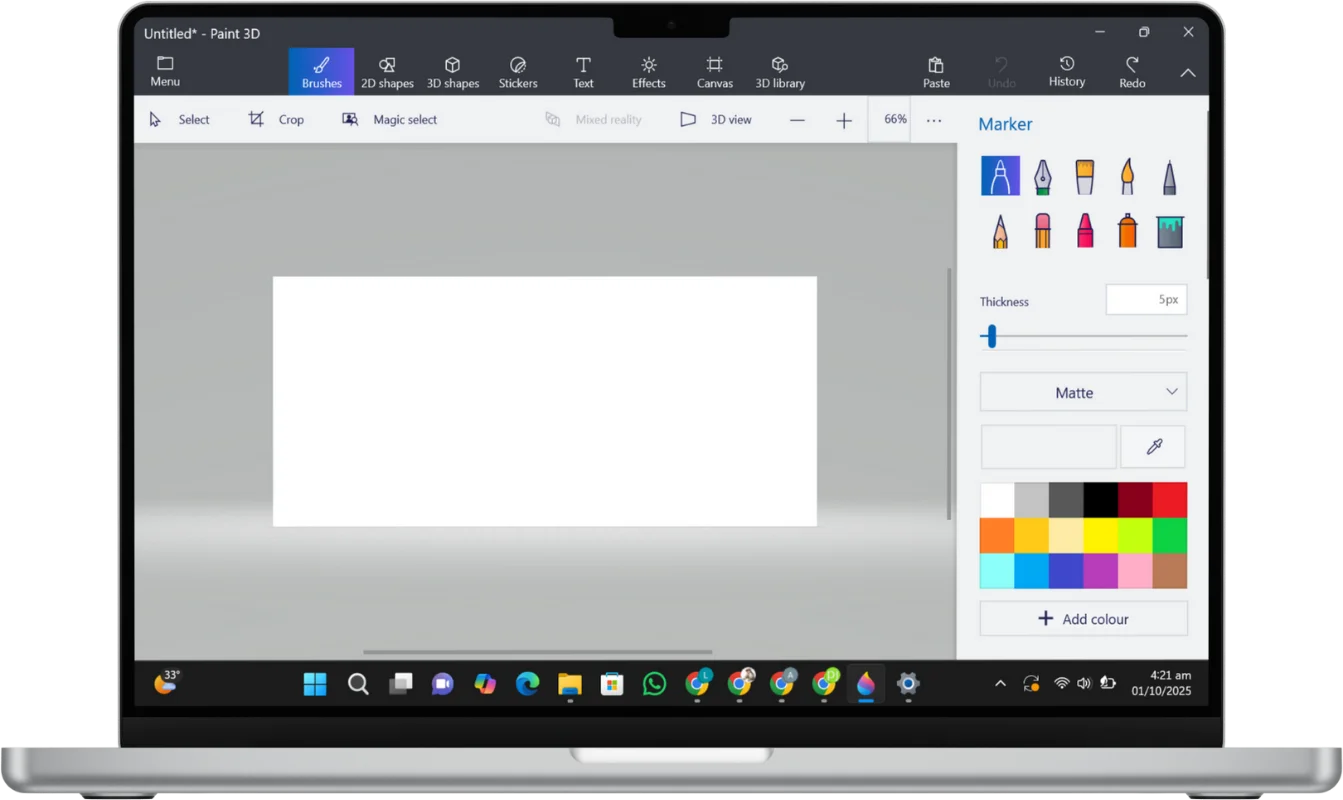
When you click on the Brushes on top header button. On the right panel, you’ll find the Brushes section. This panel contains 10 different brushes, each represented with its own icon. By default, the Marker brush is selected. When you choose a brush, its name will appear at the top. Each brush has its own default thickness and opacity values, which you can adjust based on your needs.
The available brushes tools are:

Marker

Calligraphy

Oil Brush

Water Color

Pixel Pen

Pencil

Eraser

Crayon

Spray Can

Fill
The Brush tool is used for freehand drawing, while the Pencil is ideal for writing or creating fine sketches. The Eraser allows you to remove unwanted parts of your design with ease. Similarly, the Marker, Oil Brush, Watercolor, and Crayon give different textures and painting styles, letting you create both simple drawings and detailed artwork.
The Spray Can is perfect for adding shaded or gradient effects, while the Fill Tool quickly colors an entire area. Together, these brushes provide flexibility for sketching, painting, shading, and editing directly on the canvas.
Each brush offers a unique texture and style, making it useful for different types of digital artwork. For example, the Marker brush has a default thickness of 5px and 100% opacity. You can easily modify these values using the sliders below the brush options.
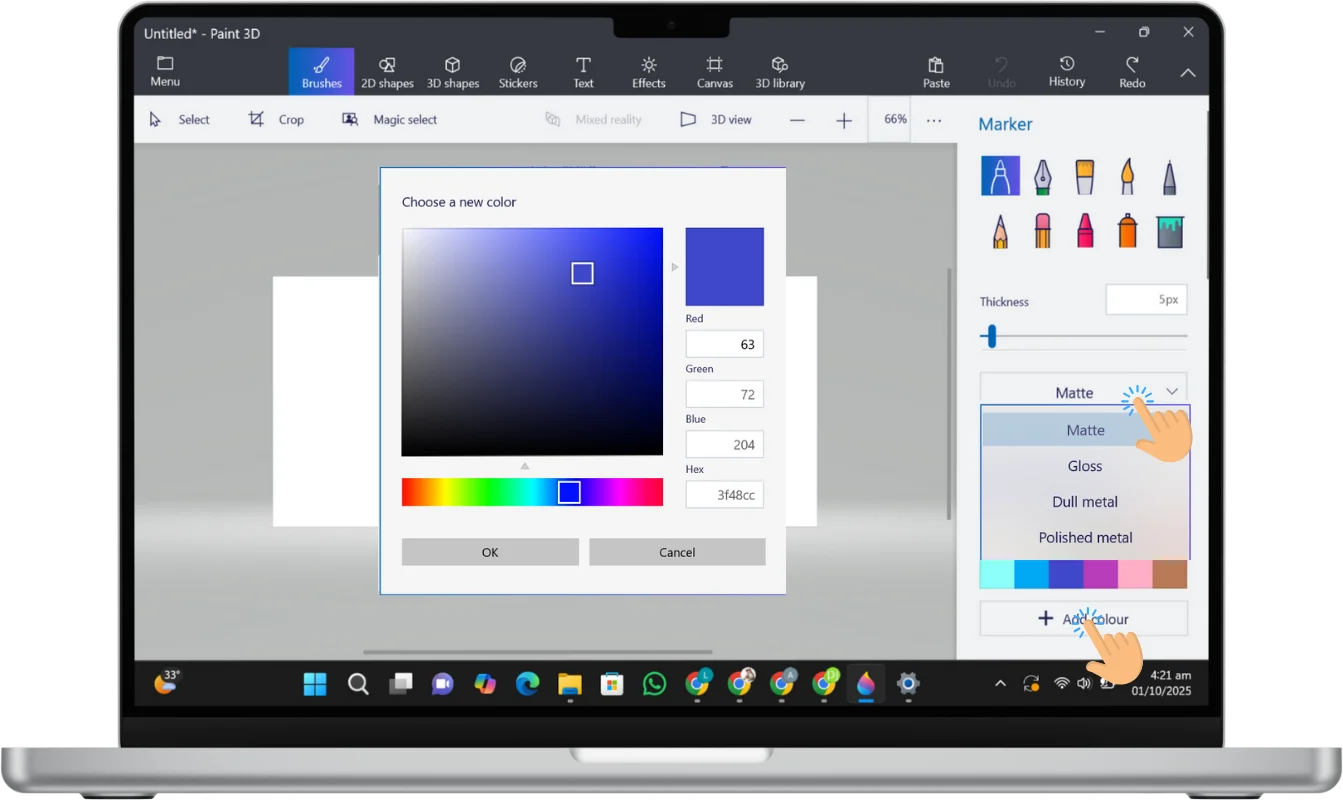
Additionally, you’ll find a material finish dropdown with following options and These finishes let you add more realistic effects to your designs.
Matte
Gloss
Dull Metal
Polished Metal
For color selection, it provides these multiple options which gives you complete control over color customization.
Color palette
RGB and HEX
Eyedropper tool
2D Shapes
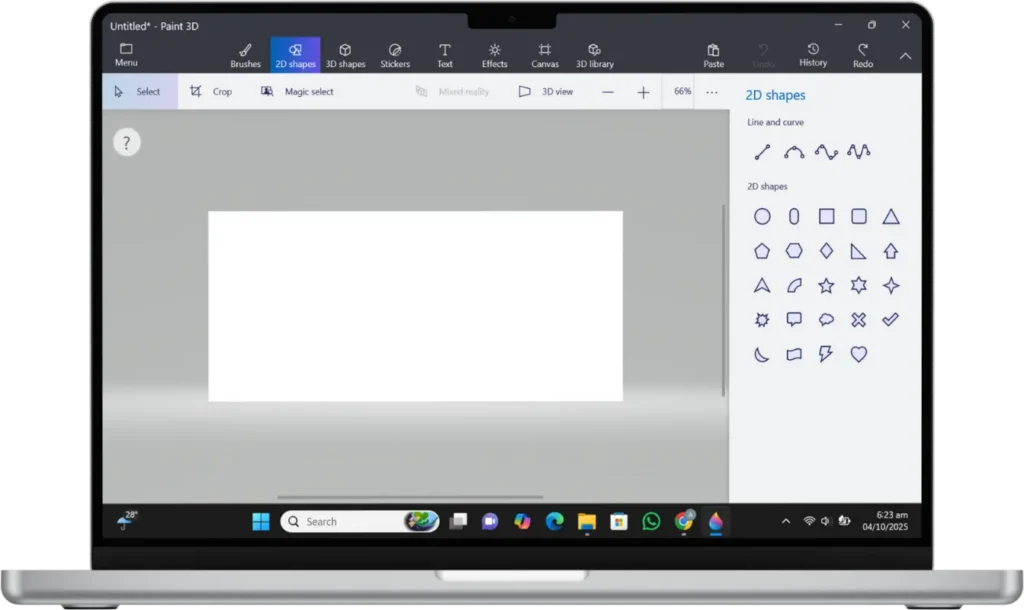
The 2D Shapes tool allows you to draw and customize a variety of flat shapes on the canvas. When you click on 2D Shapes, a panel will appear on the right side of the screen, giving you two main categories of options.
First section Line and Curves includes:
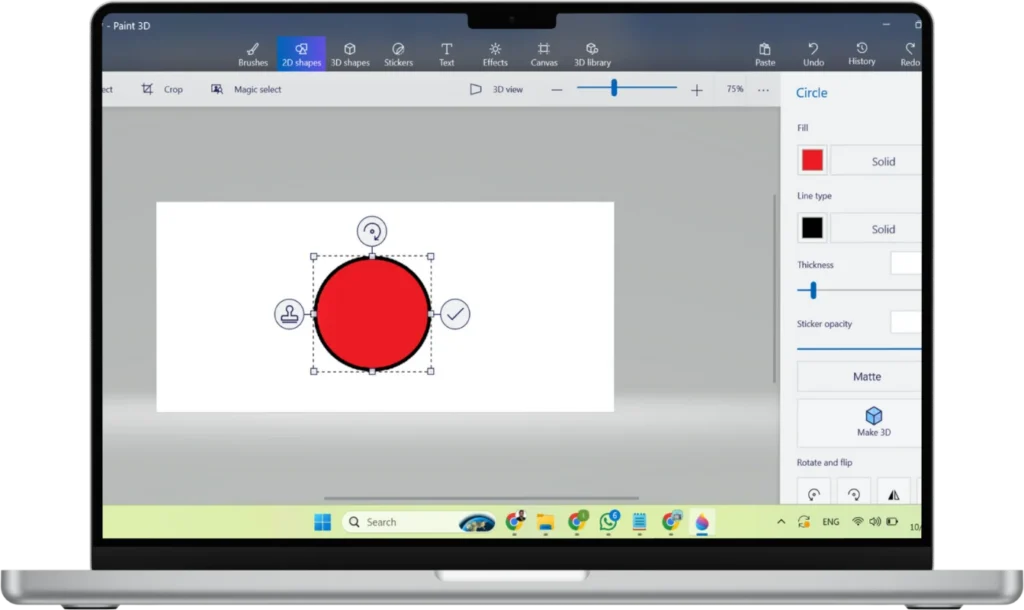
Second section 2d shapes, you can choose from 24 different shapes, such as a circle, capsule, rounded square, triangle, arrow, and many more. Once you draw a shape on the canvas, the right panel will display several customization options, including:
3D Shapes
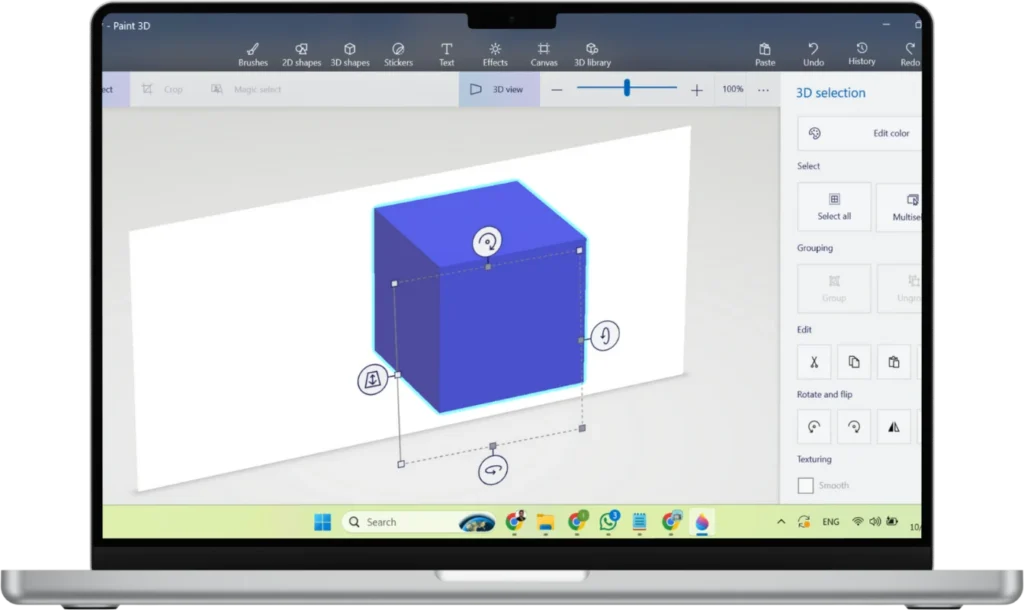
The 3D Shapes tool lets you create and customize three-dimensional objects that you can move, rotate, and view from any angle. This feature is one of the main highlights of Paint 3D, allowing users to turn simple ideas into realistic 3D models without needing advanced design skills.
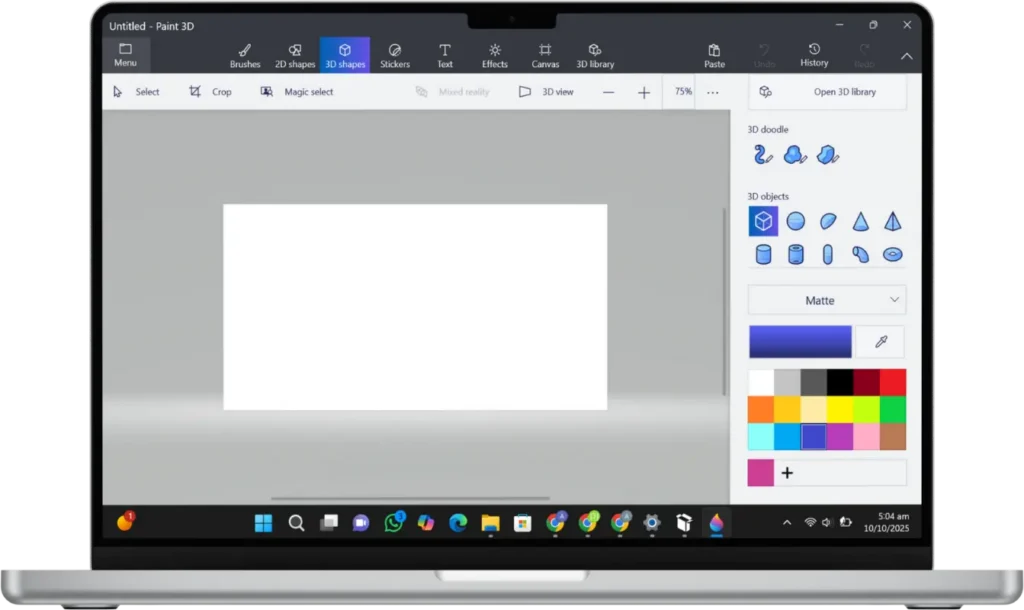
When you click on 3D Shapes, a panel opens on the right side of the screen showing different categories of objects, such as:
Once you add a shape to your workspace, you can use the on-screen controls to:
On the right panel, you’ll also find options to customize the color, texture, and finish of your 3D object. It offers finishes like Matte, Gloss, Dull Metal, and Polished Metal, helping your model look more realistic. You can even paint directly on 3D shapes using the brush tools, making each object unique.
Additionally, the 3D View mode lets you freely rotate your scene to see how your design looks from different angles. This makes it easy to build complete 3D scenes, animations, or product mockups.
Stickers
The Stickers feature allows you to add decorative designs, textures, and patterns to your artwork. Stickers can be applied to both 2D drawings and 3D models, making them a powerful tool for adding detail, color, or personality to your creations.
In addition, you can adjust the opacity of each sticker to make it transparent or more visible. This allows you to layer multiple stickers or create subtle texture effects.
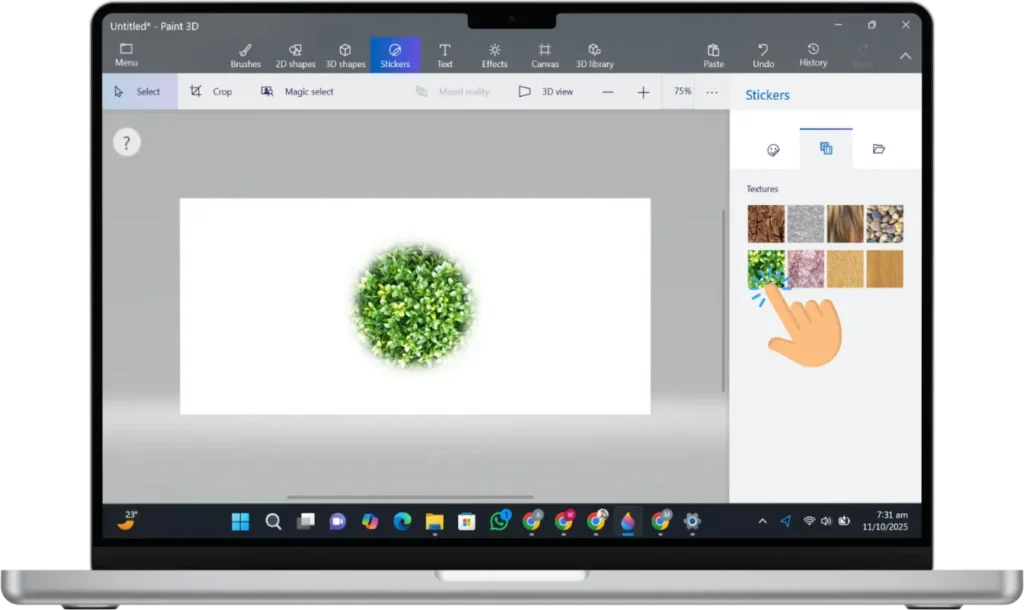
To use a sticker, simply select one and drag it onto your canvas. You can resize, rotate, and move it using the on-screen handles. If you’re working in 3D, position the sticker over the object and click “Stamp” to apply it directly to the surface. Paint 3D automatically wraps the sticker around curved or uneven shapes, helping it blend naturally.
In addition, you can adjust the opacity of each sticker to make it transparent or more visible. This allows you to layer multiple stickers or create subtle texture effects.
Stickers are especially useful for adding patterns, facial expressions, or surface textures to 3D models without manually painting them. Whether you’re designing a cartoon character, decorating an object, or adding finishing touches to a scene, the Stickers tool offers a quick and creative way to enhance your project.
Text
The Text tool in Paint 3D lets you add both 2D and 3D text to your canvas. This feature is ideal for creating labels, titles, or creative typography directly within your artwork. When you select the Text icon, a panel appears on the right side of the screen, giving you options to insert and customize your text.
You can choose between 2D text, which lies flat on the canvas, or 3D text, which you can move, rotate, and view from different angles. After typing your text, the right panel provides customization options such as:
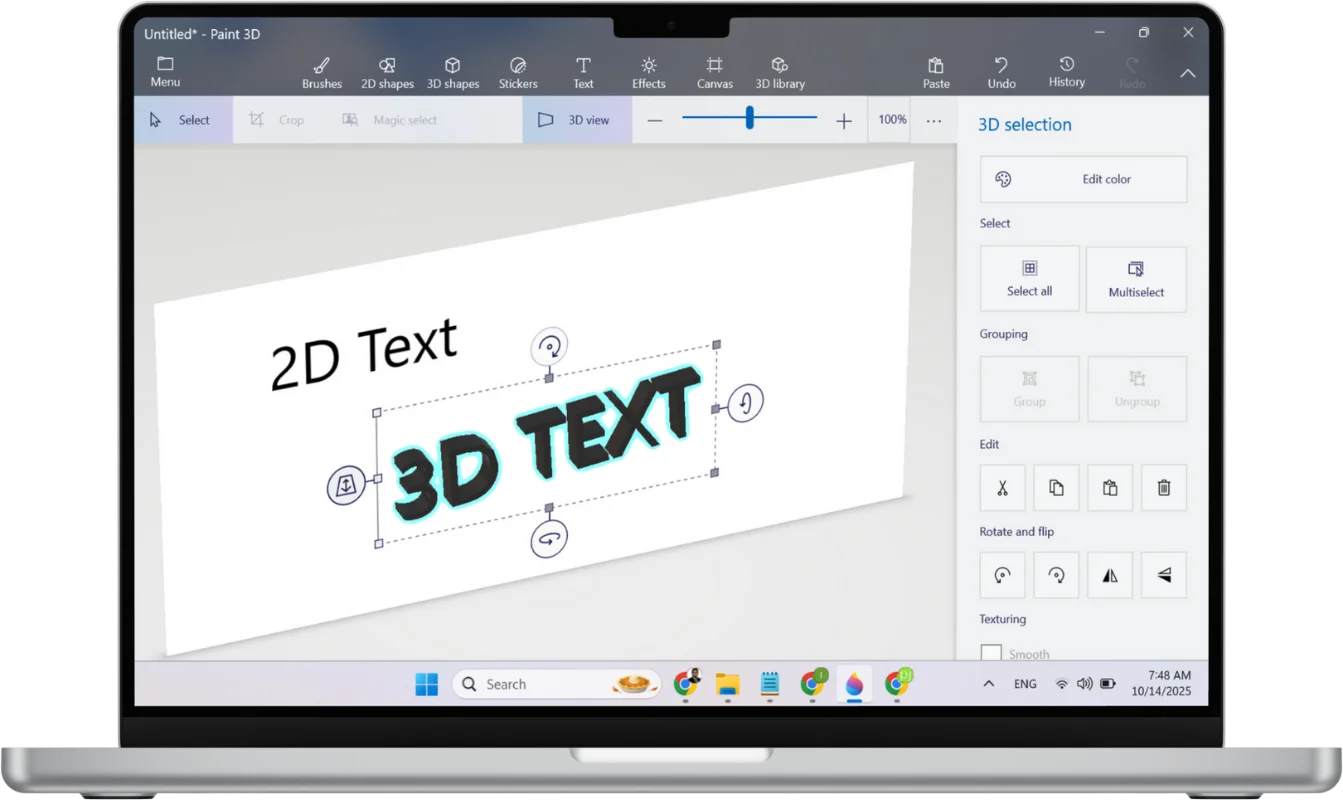
You can also freely move, resize, and rotate 3D text to position it in your scene. Combining 3D text with lighting and effects can create professional-looking titles or logos.
The Text tool adds flexibility to your designs, whether you’re working on a simple graphic or a 3D composition.
Effects
The Effects feature allows you to change the lighting and mood of your entire scene with just a few clicks. It works like a visual filter that affects both 2D and 3D elements, helping you create the right atmosphere for your artwork.
When you open the Effects panel, you’ll see a circular color wheel and a collection of preset lighting options. Each effect changes the background tone, lighting direction, and color of your scene. For example, you can apply warm tones for a sunset look or cool tones for a night effect.
Some key features include:
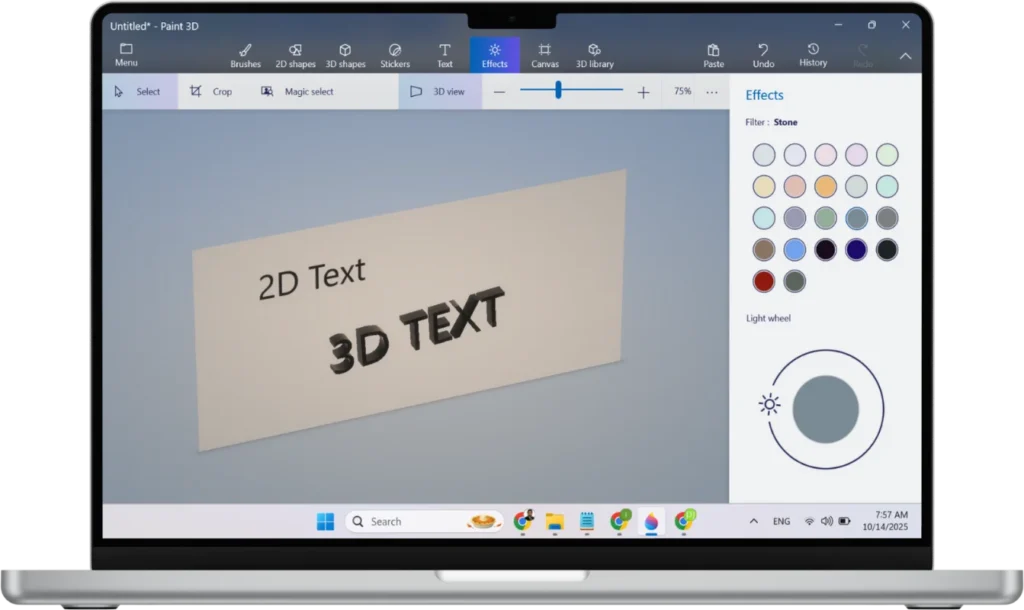
These effects are especially useful when presenting 3D models, as they bring depth and atmosphere to your designs. Whether you want a bright studio look or a dramatic cinematic tone, the Effects tool lets you fine-tune the visual impact of your project.
Canvas
The Canvas is the main working area where you create and arrange your artwork. It functions like your digital workspace — everything you draw, paint, or model appears on it. The Canvas can be customized to fit the needs of your project, whether you’re designing a small logo or a large 3D scene.
When you click on the Canvas icon, a panel opens on the right side of the screen with several important options:
Some key features include:
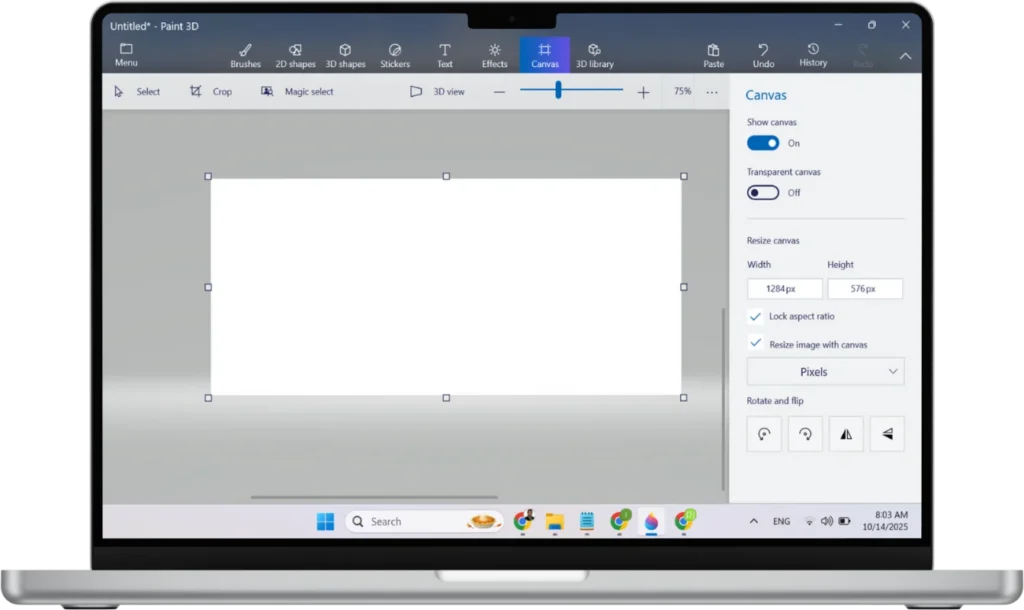
You can also zoom in and out or move around the canvas using your mouse to work comfortably on detailed parts of your design.
The Canvas settings help you control the size, shape, and background of your project, ensuring your final image looks exactly how you want it before saving or sharing.
3D Library
The Library (also known as 3D Library) gives you access to a wide collection of pre-made 3D models that you can use in your projects. This feature is especially helpful for beginners who want to create 3D scenes quickly without starting from scratch.
When you open the 3D Library, you can browse through various categories such as:
Some key features include:
Animals
Space
Dinosaurs
Vinyl Toy
Realistic
Flowers & Plants
Cool Cars
Biology
Astrology
& Many More
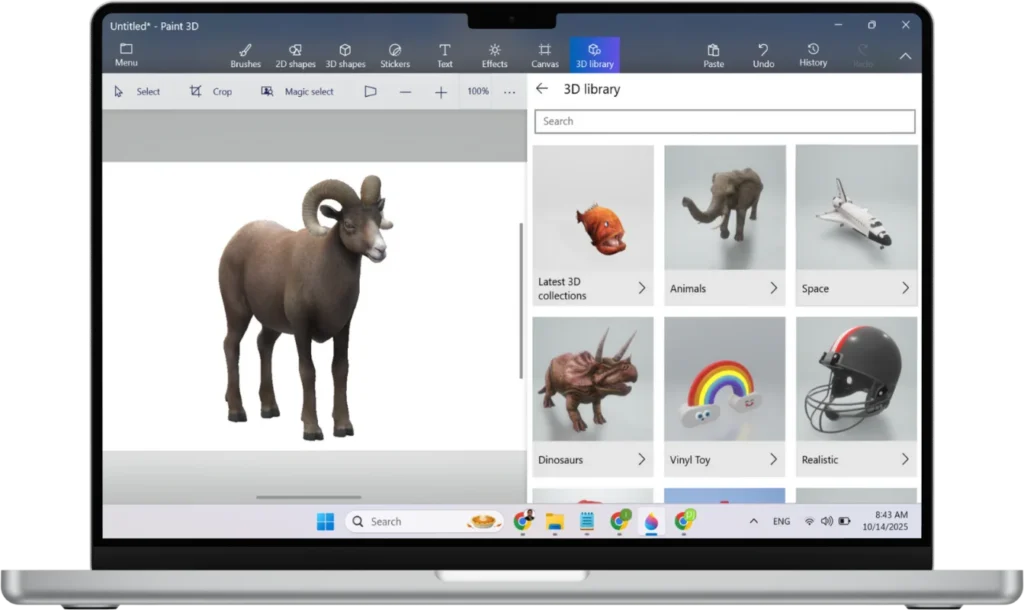
Each model can be inserted into your canvas with a single click. Once added, you can resize, rotate, paint, and apply textures just like any other 3D shape.
You can also search for specific models using the search bar at the top of the Library window. The models are ready to use and fully compatible with Paint 3D tools, allowing you to combine multiple objects and create complete 3D scenes easily.
Exporting & File Format Support
Once you’ve finished your artwork or 3D model, you can easily save or export it in different file formats depending on your needs. The program supports a variety of 2D image and 3D model formats, allowing you to share your work, print it, or use it in other applications.
To export your project, click on the Menu button in the top-left corner of the Paint 3D window then click on the Save As button. From there, you’ll find several saving and exporting options:
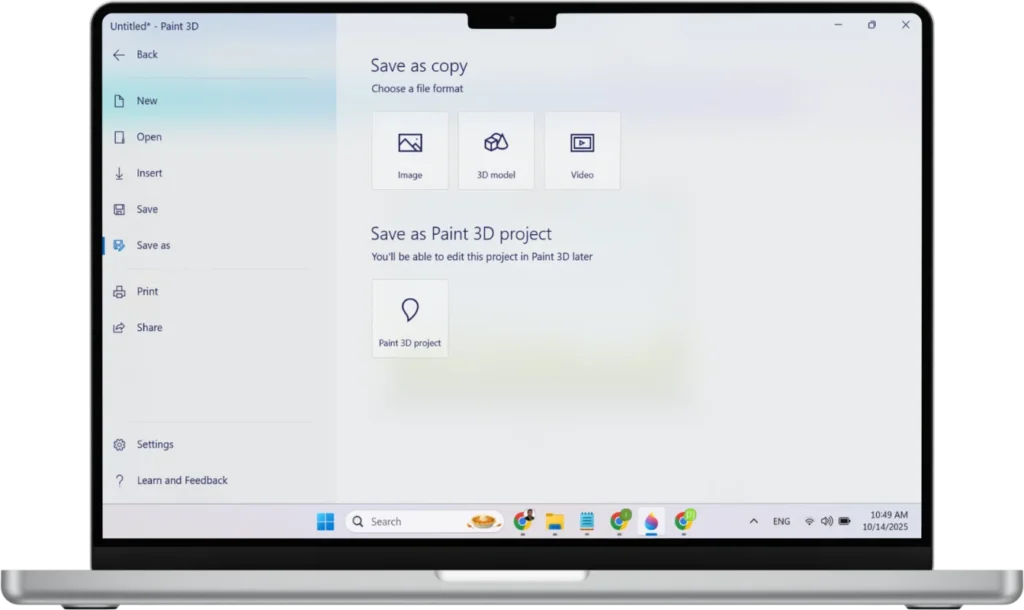
For 2D exports, Paint 3D also supports transparent backgrounds, making it perfect for logo design and digital art. When working with 3D projects, you can adjust lighting, camera angle, and object position before exporting to get the perfect final view.
Paint 3D ensures your work remains flexible — you can reopen saved projects for further editing or export them in standard file formats for easy use on other devices and software.
How to Download and Install in Windows 10 and 11
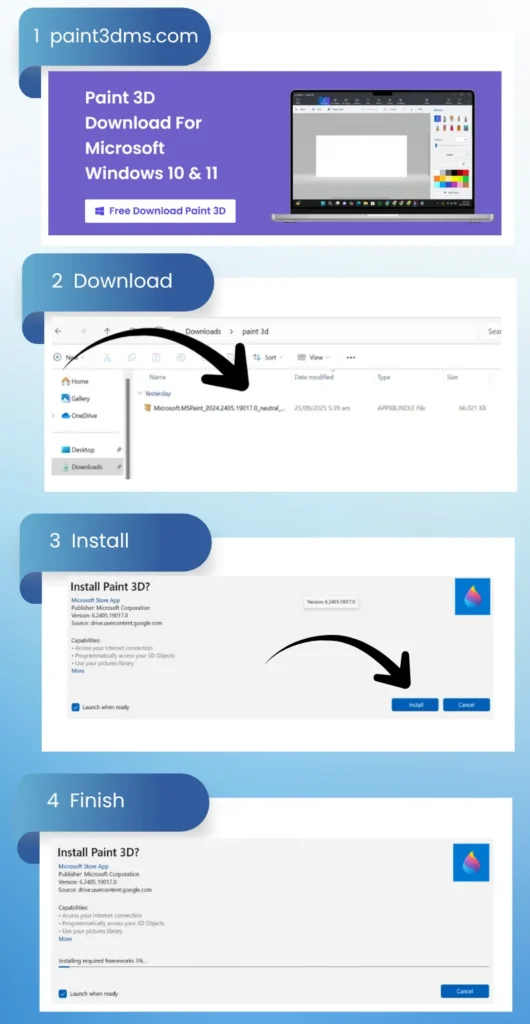
Paint 3D comes preinstalled on most Windows 10 and Windows 11 computers. However, if it has been removed or isn’t available on your system, you can easily download and install it again from the Microsoft Store. The process is quick, free, and completely safe since Paint 3D is an official Microsoft app.
Follow these steps to download paint 3d and install in windows 10 & 11:
How to Use Paint 3D Effectively
To use Paint 3D effectively, start by setting up your canvas — choose the right size and background or enable transparency for logo designs. Combine 2D shapes and 3D models to create depth in your artwork.
Use Stickers and Textures to add realistic details, and adjust Lighting and Effects to set the mood of your scene. Add 3D text for labels or titles, and explore the 3D Library to use ready-made models for quick designs.
When finished, export your project in the right format — PNG for 2D images or GLB/FBX for 3D files. With regular practice and experimentation, you’ll easily master Paint 3D and create professional-looking designs.
Paint 3D vs Microsoft Paint
Both Paint 3D and Microsoft Paint are creative tools from Microsoft, but they are designed for different types of users. Microsoft Paint is the classic, easy-to-use program for drawing and simple image editing. It’s great for quick sketches, resizing pictures, or adding text. Paint 3D, however, takes creativity a step further.
It includes everything from the original Paint and adds modern features like 3D modeling, textures, lighting effects, and realistic finishes. While Paint is best for basic 2D tasks, It gives users the freedom to create detailed 3D artwork and professional designs — all within a user-friendly interface.
Feature
Microsoft Paint
Paint 3D
Purpose
Basic 2D drawing and image editing
2D and 3D design creation
User Interface
Simple and minimal
Modern and feature-rich
3D Modeling
Not Supported
Fully Supported
Brushes & Tools
Basic brushes only
10 advanced brush types with textures
Shapes
2D shapes only
Both 2D and 3D shapes
Stickers & Textures
Not available
Available for realistic effects
Text Tool
2D text only
2D and 3D text options
Lighting & Effects
No effects
Lighting and scene effects
Export Formats
BMP, JPEG, PNG, GIF
PNG, JPEG, BMP, GIF, GLB, FBX, 3MF
Best For
Simple drawings and edits
Creative 3D projects and modern designs
Benefits of Paint 3D for Creators
This Software empowers creators of all skill levels to bring their ideas to life with ease. Unlike traditional painting tools, it combines both 2D and 3D design capabilities, allowing users to draw, model, and paint within the same workspace. The intuitive interface and drag-and-drop tools make it simple to create complex 3D objects, apply realistic textures, and experiment with colors or lighting effects without needing professional design experience.
For artists, students, and designers, it opens up endless creative possibilities. Users can add stickers, text, and custom effects to their projects, giving them a polished and modern look. It also supports exporting files in multiple formats, including those used for 3D printing, making it a practical tool for both digital and physical creations. Whether you’re sketching concepts or developing detailed 3D models, Paint 3D provides everything you need to create visually stunning artwork easily.
Limitations
While it offers great creative tools for beginners and casual users, it does have some limitations compared to professional design software. The app lacks advanced editing features such as detailed layer management, precise vector tools, and high-level rendering options. This makes it less suitable for complex projects or professional 3D modeling tasks. Additionally, its performance can slow down when handling large files or high-resolution models.
Another drawback is its limited file format compatibility—it supports only a few export options, which can be restrictive when working with other design tools. It also doesn’t support animation or motion design, which limits its use in multimedia projects. Overall, while it’s excellent for quick 3D creations, educational use, or basic design work, users looking for more advanced capabilities may need to switch to specialized software like Blender or Adobe Dimension.