Paint 3D Not Working?

A Complete Guide to Fixing Crashes, Freezes, and Errors
It’s a frustrating moment: you’re in the middle of a creative project, and Paint 3D suddenly crashes, freezes, or won’t even open. This is a common issue for many Windows users that paint 3d not working, but the good news is that most of the problems are fixable.
This guide will walk you through the most effective solutions, starting with the simplest and safest fixes, to get you back to your artwork.
Solution 1: Repair or Reset the Paint 3D App
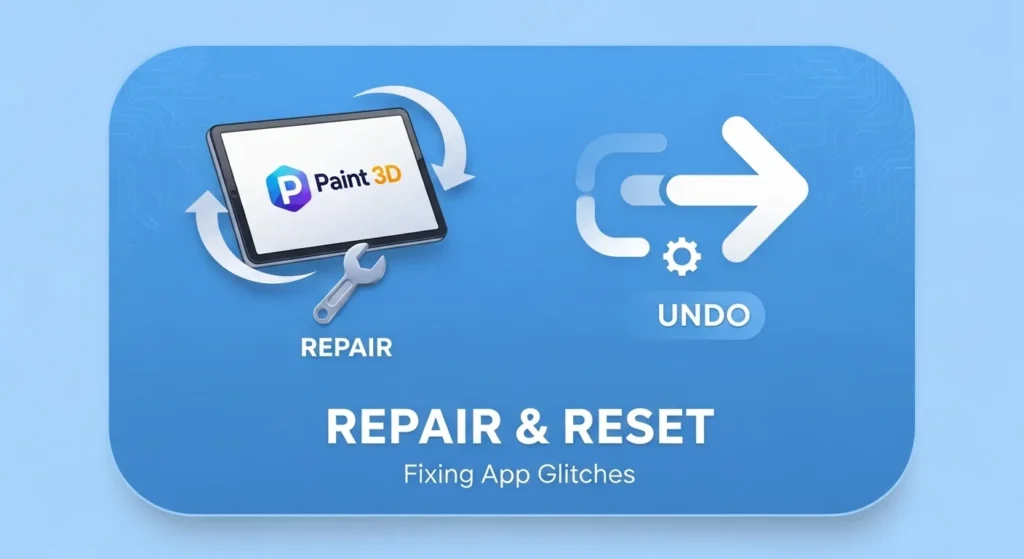
Before you dive into complex system checks, the best place to start is Windows’ built-in repair tool. This is designed to fix app-specific glitches without affecting your other files.
- Click the Start menu and select the Settings gear icon ⚙.
- In the Settings window, click on Apps, then Installed apps (or Apps & features).
- Scroll down the list to find Paint 3D.
- Click the three dots (…) next to it and choose Advanced options.
- Start with Repair: Scroll down and click the Repair button. This is the safest option. It will try to fix the app without losing any of your saved projects.
- If Repair Fails, use Reset: If it still doesn’t work, go back to the same menu and click Reset.
Important Warning
Resetting the app will permanently delete all of its data. This includes any projects you have saved *within the app’s menu*. Before you click Reset, make sure you have manually saved all your important projects to a separate folder.
Solution 2: Clear High-Resource Background Tasks

Sometimes, Paint 3D isn’t the problem—your computer is just out of breath. If the app is freezing or lagging, another program might be hogging all your system’s memory (RAM) or processing power (CPU).
- Press Ctrl + Shift + Esc to open the Task Manager.
- Click “More details” if you see a simplified view.
- In the Processes tab, look at the CPU and Memory columns.
- Are any other apps (like a web browser with 50 tabs, another editor, or a game) using a very high percentage?
- If you find a non-essential app that’s overloading your system, click on it and select End task.
- Close Task Manager and see if Paint 3D runs more smoothly.
Solution 3: Update Your Graphics Driver
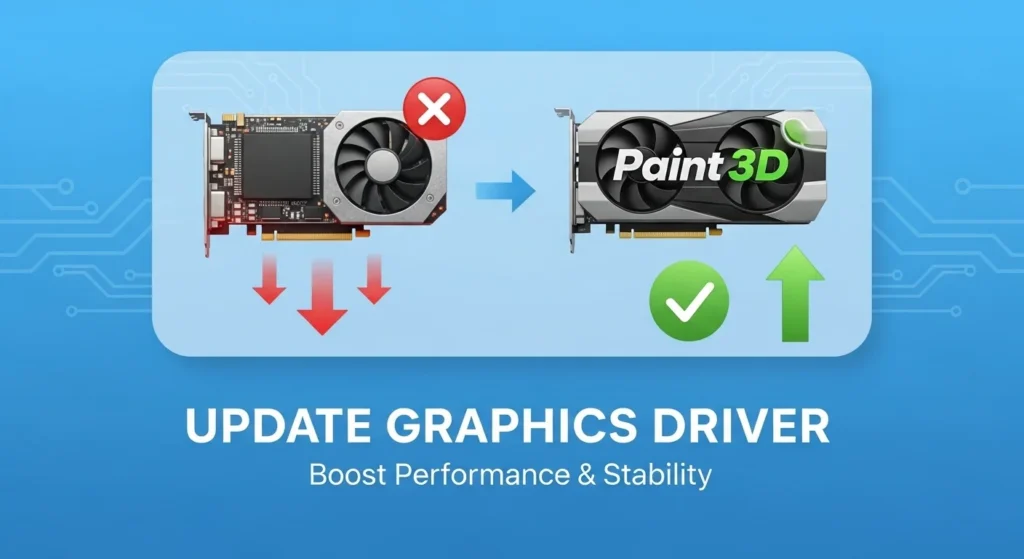
Paint 3D relies heavily on your computer’s graphics hardware (GPU). An outdated or “buggy” driver is one of the most common reasons for crashes and visual glitches in creative software.
- Go to Settings > Windows Update (or Update & Security).
- Click Check for updates. This is the easiest way, as Windows often bundles the latest, certified drivers with its regular updates.
- For a more direct update:
- Press the Windows key + X and select Device Manager.
- Expand the Display adapters section.
- You’ll see your graphics card (e.g., NVIDIA, AMD, or Intel). Right-click it and select Update driver.
- Choose Search automatically for drivers and follow the prompts.
Solution 4: Run the Windows Store App Troubleshooter

Windows has a built-in “mechanic” specifically for fixing apps from the Microsoft Store, like Paint 3D.
- In the Start menu, type “Troubleshoot settings” and press Enter.
- Click on Other troubleshooters (or Additional troubleshooters).
- Scroll down to the very bottom and find Windows Store Apps.
- Click the Run button and follow the on-screen instructions. It will automatically scan for common problems and attempt to fix them.
Solution 5: Fix Corrupted Windows System Files
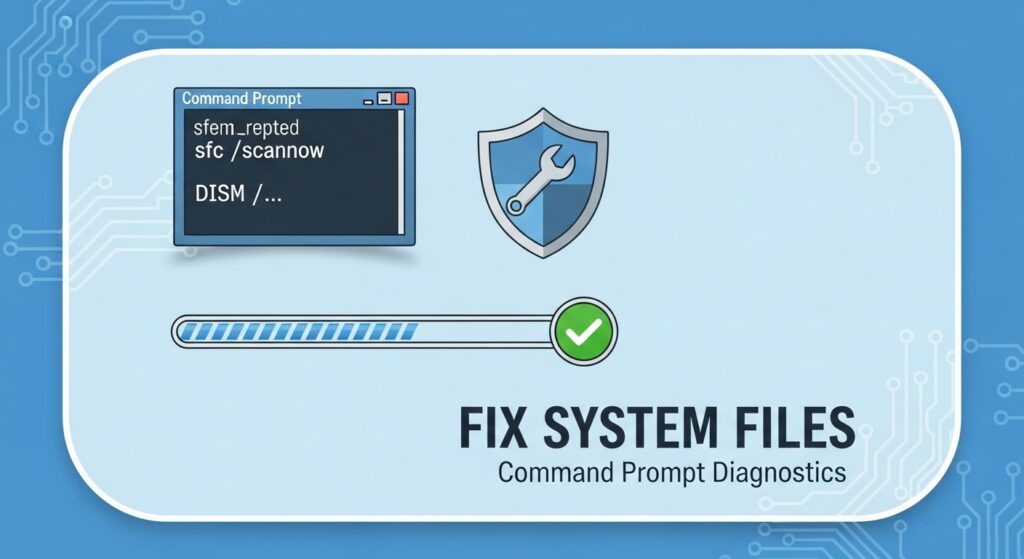
If the app *still* crashes, the problem might be deeper—with Windows itself. Corrupted system files can cause all sorts of random issues. This solution uses the Command Prompt to scan and repair your system’s core files.
1. In the Start menu, type “Command Prompt”.
2. Right-click it from the results and select Run as administrator.
3. First, run the System File Checker (SFC). Type the following command and press Enter:
sfc /scannow
This will scan all protected system files and replace any corrupted ones. It may take 5-10 minutes.
4. After it finishes, run the DISM tool. This is a more powerful tool that can repair the core Windows image. Type these commands one at a time, pressing Enter after each:
DISM /Online /Cleanup-Image /CheckHealth
DISM /Online /Cleanup-Image /ScanHealth
DISM /Online /Cleanup-Image /RestoreHealth
5. Once all commands have finished running, restart your PC and try opening Paint 3D.
Special Problem: How to Recover Lost or Missing Projects
This is a specific, scary problem where all your projects vanish from the “Open” menu. Often, the files are not deleted—the app just “forgot” where they are. Here is how to manually restore them.
Step 1: Find Your Project Files
- Open File Explorer.
- At the top, click the View tab and check the box for Hidden items. This is essential.
- In the address bar, copy and paste the following path (replace `[YourUsername]` with your actual Windows username) and press Enter:
C:\Users\[YourUsername]\AppData\Local\Packages\Microsoft.Paint_8wekyb3d8bbwe\LocalState\Projects
Step 2: Restore the Project List
- Inside this folder, you should see two types of files:
- `PROJECT.JSON` (This file is probably empty, 0 bytes).
- One or more files named `PROJECT.JSONxxxxx.TMP`. These `.TMP` files are your backups!
- Right-click the `PROJECT.JSON` file and choose Open with > Notepad. It will likely just show empty brackets:
[ ] - Now, right-click the largest or most recent `.TMP` file and also Open with > Notepad.
- This file will be full of text. Carefully copy all the text *inside* the main brackets.
- Go back to your empty `PROJECT.JSON` file in Notepad.
- Paste the text you copied *inside* its empty brackets.
- Before:
[ ] - After:
[ {project data...}, {more...} ]
- Before:
- Click File > Save to save your changes to the `PROJECT.JSON` file.
- Close Notepad and open Paint 3D. Your missing projects should now be back in the “Open” menu.
Final Option: Reinstall Paint 3D
If all else has failed, a clean slate is your last resort.
- Go to Settings > Apps > Installed apps.
- Find Paint 3D, click the three-dot menu, and select Uninstall.
- After it’s removed, open the Microsoft Store app.
- Search for “Paint 3D” and click Install to get a fresh copy.
This will almost certainly fix any persistent software-related issues.