How to Convert 2D Drawings into 3D Models Seamlessly using Paint 3D
The ability to convert 2D drawings into 3D models is a core feature of Paint 3D, but it is not as simple as pressing a single “magic button.” While the software allows you to make flat images pop off the background, creating a true 3D object requires a bit of manual reconstruction.
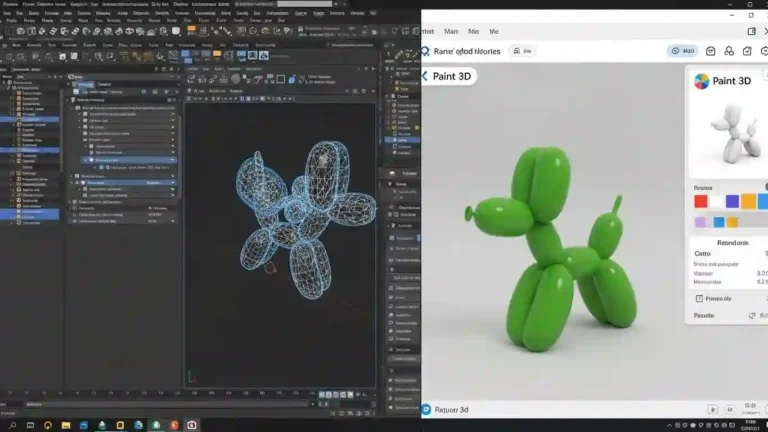
I have tested various workflows, and the most reliable method involves setting up a split workspace where you can trace, sample, and rebuild your 2D image into 3D components side-by-side. This ensures your final model has actual volume, roundness, and life-like characteristics that a simple flat cutout lacks.
In this guide, I will walk you through the 5-step process of enlarging your canvas, tracing with doodle tools, and texturing your model for a professional finish.
If you are new to the interface, you can read our beginner’s guide to Paint 3d.
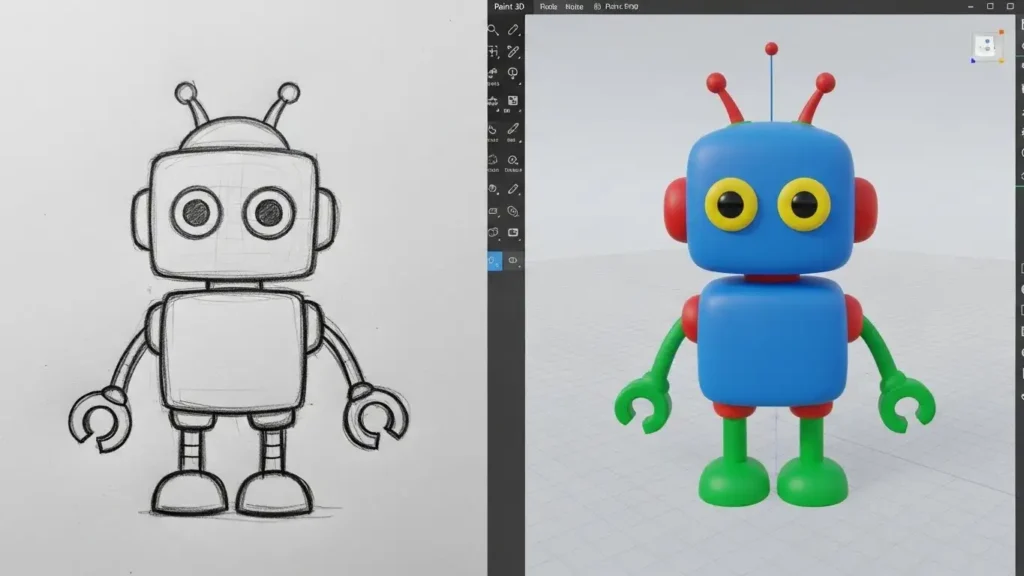
Step 1: Expand the Canvas for a Dual Workflow
To convert 2D drawings into 3D accurately, you need space. You don’t want to build your 3D model directly on top of your 2D drawing, or it will become difficult to see what you are doing.
- Resize Canvas: Select the “Canvas” tab. Drag the resize handles to make the canvas wide enough to hold two images side-by-side.
- Import Reference: Go to Menu > Insert and upload your 2D picture. Move it to the far left side of the canvas.
This setup allows you to easily use the Eyedropper tool to sample colors from the original 2D image and apply them to your new 3D model on the right.
Step 2: Trace with Specific 3D Doodle Tools
Now we reconstruct the image. Instead of just selecting the 2D image and hitting “Make 3D” (which creates a flat cardboard cutout), we will use the Doodle tools to create genuine volume.
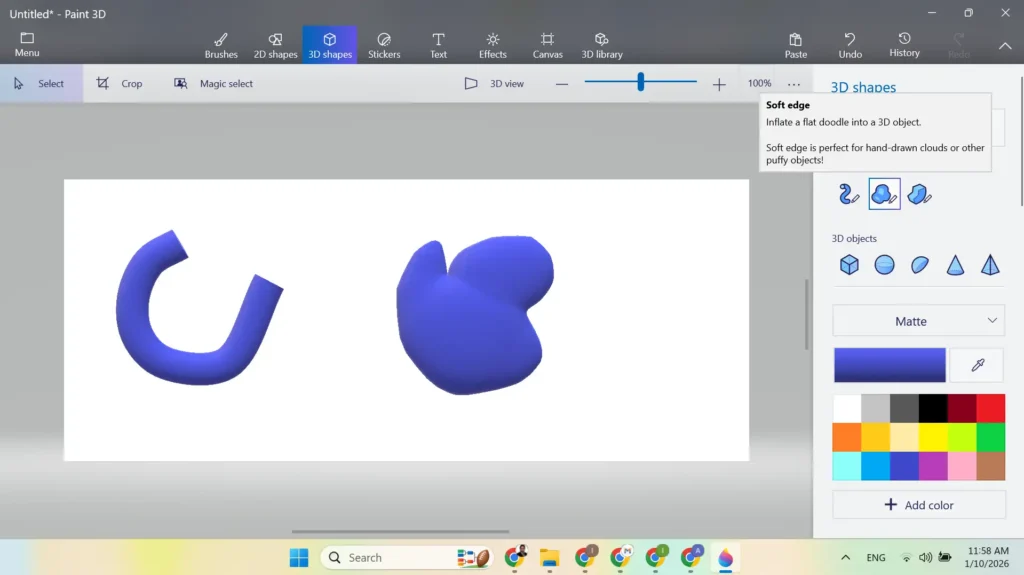
- For Lines (e.g., Rainbows, Pipes): Use the Tube Brush. Trace the curve of your rainbow on the empty side of the canvas. It will instantly become a cylindrical 3D tube.
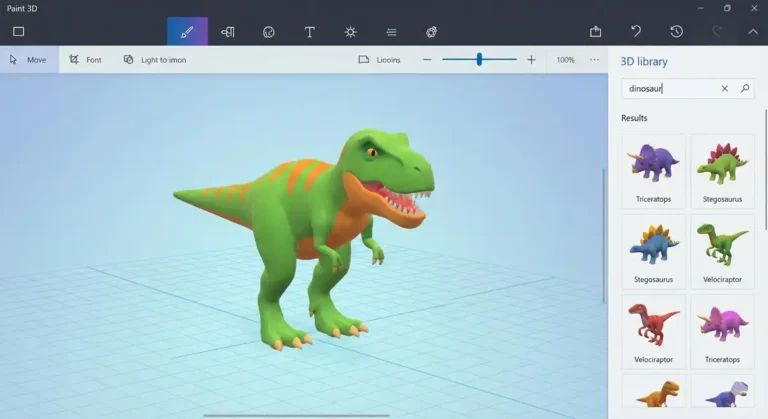
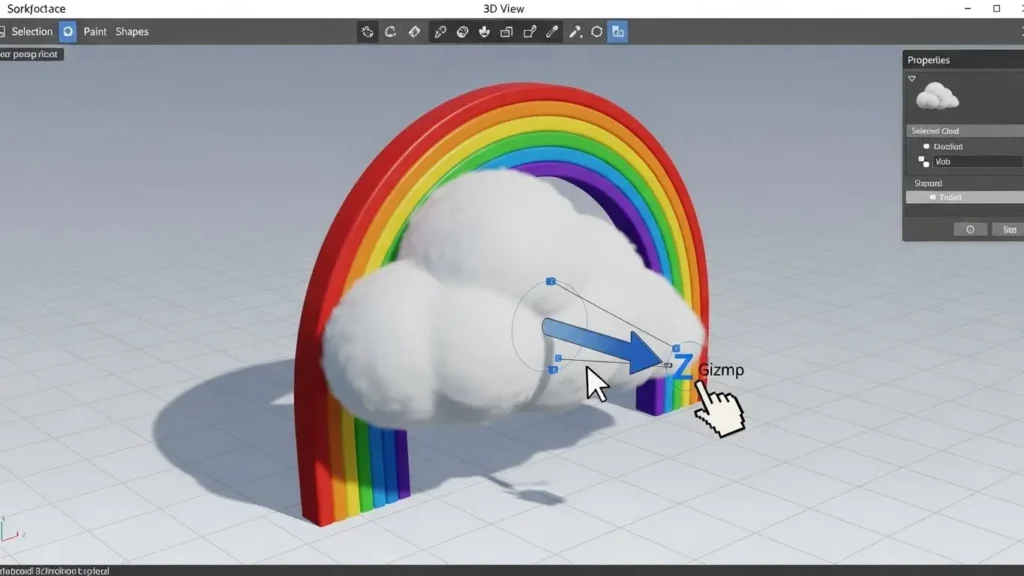
- For Organics (e.g., Clouds, Characters): Use the Soft Edge Doodle. Trace the outline of the clouds. This tool “puffs” up the shape, giving it a pillow-like 3D quality perfect for organic matter.
Once you trace a part, move it slightly aside. Don’t worry about perfect positioning yet; just create the parts.
Step 3: Match Colors and Textures
One of the biggest advantages of the side-by-side layout is color matching. You want your 3D model to look like it belongs to the same world as your 2D drawing.
- Select the Eyedropper tool from the Brushes menu.
- Click on a specific color in your 2D reference image (e.g., the red of the rainbow).
- Select the Fill Bucket tool and click on the corresponding 3D object you just created.
Pro Tip: You can also use the “Make Sticker” method here. Select a detail from your 2D image (like a logo or face), turn it into a sticker, and paste it directly onto the surface of your new 3D doodle for added detail.
Step 4: Arrange Components in 3D Space
A 2D drawing is flat, but your model has depth. To make it look realistic, you must manage the Z-axis (depth).
Select your cloud objects and move them slightly forward in Z-space so they sit in front of the rainbow tubes. This prevents the “z-fighting” glitch where two objects flicker because they occupy the exact same space. Toggle the 3D View constantly to check your model from the top and sides.
Step 5: Crop and Export
Once your 3D masterpiece is assembled, you no longer need the 2D reference image cluttering your file.
- Go back to the Canvas tab.
- Use the crop handles to frame only your new 3D model, excluding the original 2D image.
- Go to Menu > Save As > 3D Model.
Paint 3D supports exporting to .GLB and .3MF, making your file ready for use in other applications. If you run into saving errors, check our guide on how to fix Paint 3d not working.
Frequently Asked Questions
Q1: Why not just use the “Make 3D” button on the whole image?
Using “Make 3D” on a 2D selection creates a flat plane with zero thickness—like a piece of paper floating in air. To convert 2D drawings into 3D with actual roundness and volume, you must use the Doodle tools to reconstruct the shapes.
Q2: Can I edit the shape after I finish doodling?
Once you finish a 3D Doodle, the mesh is solidified. You can resize, rotate, or squash it, but you cannot edit the original vector path. If the shape is wrong, it is usually faster to delete it and re-trace.
Q3: What file format is best for sharing?
The .GLB format is the industry standard for sharing 3D files on the web and in Microsoft Office applications. It contains all your mesh and color data in a single file.
Conclusion
Transforming a static image into a dynamic 3D model is a rewarding process that goes beyond simple automated tools. By expanding your canvas and reconstructing your drawing piece-by-piece using the specific Doodle brushes, you gain complete control over the depth and style of your creation.
This workflow allows you to convert 2D drawings into 3D with a level of polish that looks handmade and professional. Open Paint 3D, widen that canvas, and start building your world.