The Ultimate Beginner’s Guide to Microsoft Paint 3D (2026 Edition)
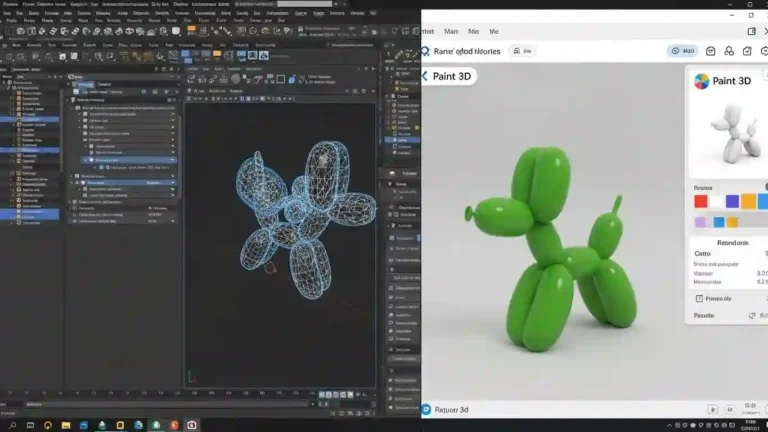
If you are looking for a way to create stunning graphics without the steep learning curve of Blender or Photoshop, you are in the right place. In this guide, we are going to break down how to use Microsoft Paint 3D so you can go from a blank canvas to a finished 3D model in under 15 minutes. Whether you are upgrading from the classic MS Paint or just want to make cool pop-out images for social media, this guide is your starting line.
Let’s be honest: 3D design usually sounds intimidating. You might think you need expensive software or a degree in graphic design to make something cool. But that is exactly where Microsoft changed the game.
What is Paint 3D and Why Use It?
Think of Paint 3D as the “cool older sibling” of the classic MS Paint we all grew up with. Microsoft released it to bridge the gap between simple 2D drawing and 3D modeling.
Quick Summary: What Can It Do?
It isn’t just for drawing stick figures anymore. It allows you to:
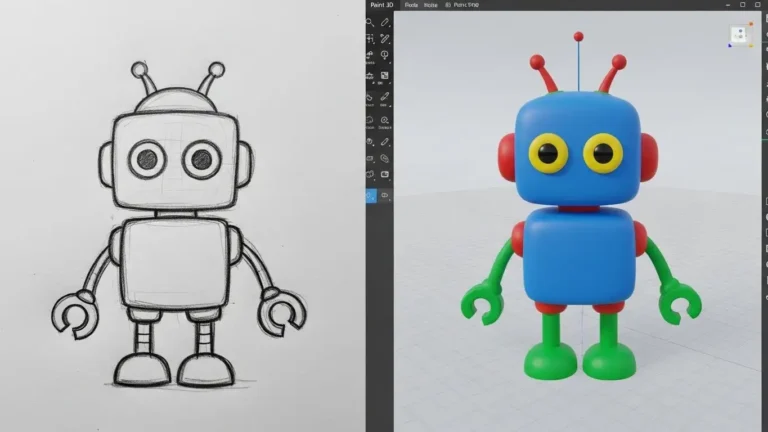
- Convert 2D doodles into 3D objects instantly.
- Access a massive library of pre-made 3D models.
- Apply realistic textures (like wood, grass, or fur) to your art.
If you want to create YouTube thumbnails, transparent logos, or fun projects for school, this is the best free tool on Windows.
Step 1: Tour the Interface (Getting Comfortable)
When you first launch the app, the interface is clean and touch-friendly. Let’s look at the top menu bar, which is your command center.
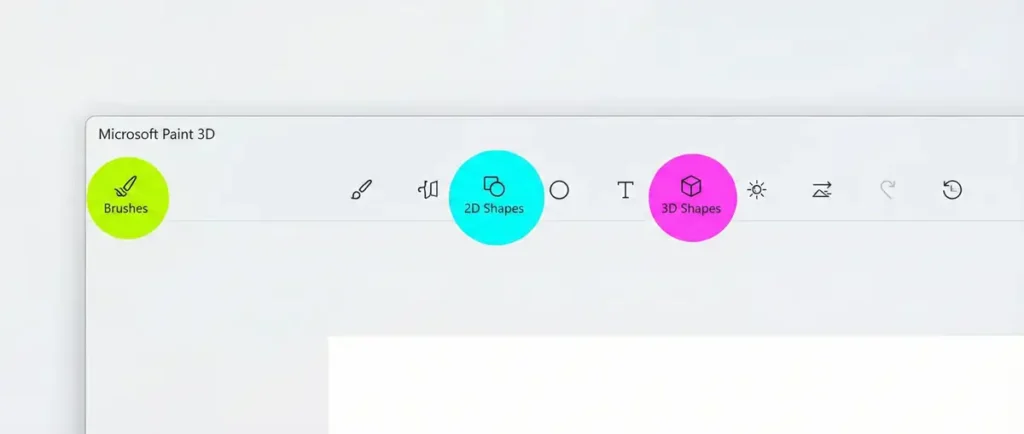
Here are the three most important tabs you need to know:
- Brushes: This looks familiar. It holds your markers, calligraphy pens, and the eraser.
- 2D Shapes: Standard circles, squares, and lines.
- 3D Shapes: The magic button. This is where you create cubes, spheres, and doodles that have depth.
Step 2: Creating Your First 3D Object
Let’s stop reading and start doing. We are going to make a simple 3D cloud.
- Click on the 3D Shapes icon in the top menu (it looks like a box).
- On the right sidebar, look for the section called “3D Doodle.”
- Select the Soft Edge tool.
- Draw a cloud shape on your canvas. Just trace a squiggly line and connect it back to the start.
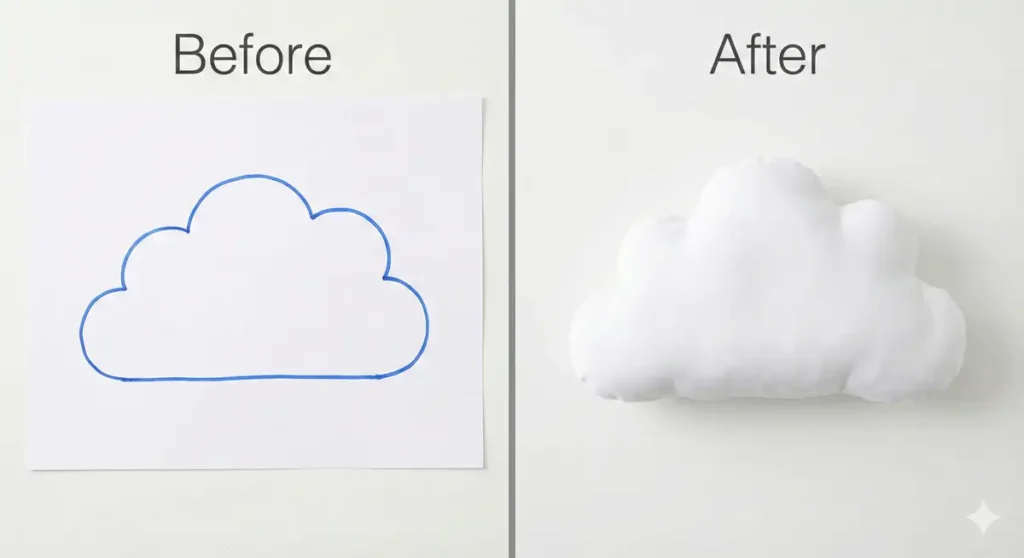
Boom. As soon as you close the loop, Paint 3D “inflates” your drawing. It is no longer flat; it is a puffy 3D cloud. You can now use the rotation handles to spin it around and see it from every angle.
Step 3: Using the 3D Library (The Cheat Code)
You don’t always have to draw from scratch. Paint 3D comes with a massive library of assets created by Microsoft and the community.
- Click the 3D Library button on the top right.
- Type “Dinosaur” or “Car” into the search bar.
- Click on a model, and it will drop right onto your canvas.
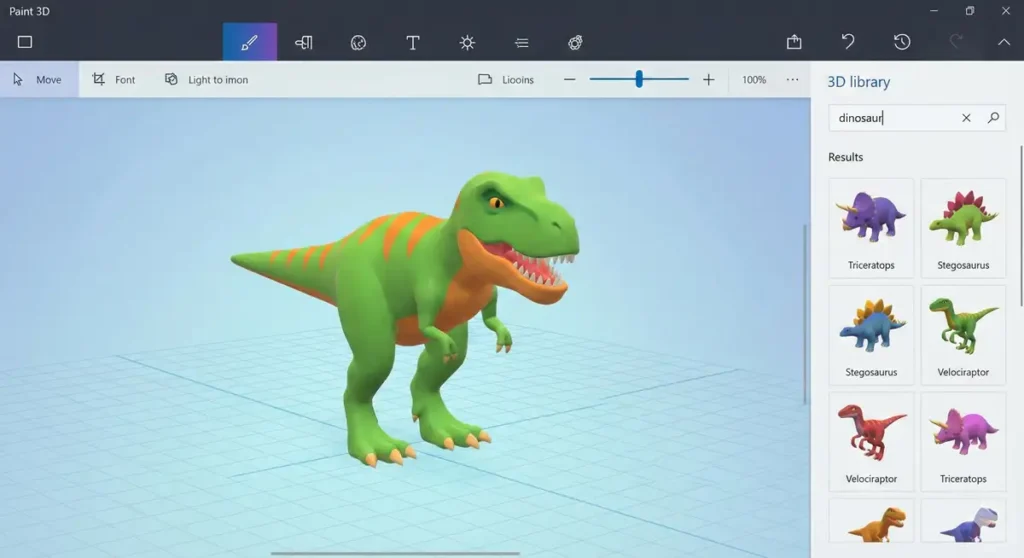
Once the model is on your canvas, you can combine it with your own drawings. Put that T-Rex on top of your 3D cloud? Why not.
Step 4: Textures and Stickers
A grey 3D model is boring. Let’s paint it.
- Go to the Stickers tab (the face icon).
- Choose the Textures tab (the pattern icon).
- Select a texture, like “Wood” or “Sand.”
- Click on your 3D object.
The texture wraps around your 3D model perfectly like a skin. You don’t need to do any complex mapping; the software handles the geometry for you.
Step 5: How to Save Your Work
This is where beginners often get stuck. Do you want to save it so you can edit it later, or save it as a picture to share?
- To Edit Later: Go to
Menu > Save As > Paint 3D Project. This keeps all your layers and 3D data intact. - To Share: Go to
Menu > Save As > Image.
Pro Tip: If you want a transparent background (for a logo), make sure to check the box that says “Transparency” before you hit save.
How to use Microsoft Paint 3D: Final Thoughts
Learning how to use Microsoft Paint 3D doesn’t have to be a headache. It is designed to be playful. The best way to learn is to click buttons and see what happens—you can’t break it!
In our next guide, we will dive deeper into advanced tricks, like how to use the “Magic Select” tool to crop people out of photos perfectly.
Ready to try it out? Open Paint 3D on your PC right now and draw your first 3D doodle!